









Customizing Your Device: How to Adjust Ringer Volume for Any Situation
We’ve all been there: you’re in a meeting, and your phone suddenly blares out that catchy ringtone. Or maybe you miss an important call because your device was on silent mode. Adjusting ringer volume can seem simple, yet it’s crucial for navigating different situations seamlessly. Whether you’re at work, chilling at home, or out with friends, knowing how to customize your ringer setting can make all the difference. Let’s dive into some handy tips and tricks to ensure you never miss a beat—or annoy anyone else—with your notifications again!
Customizing Your Device: How to Adjust Ringer Volume for Any Situation
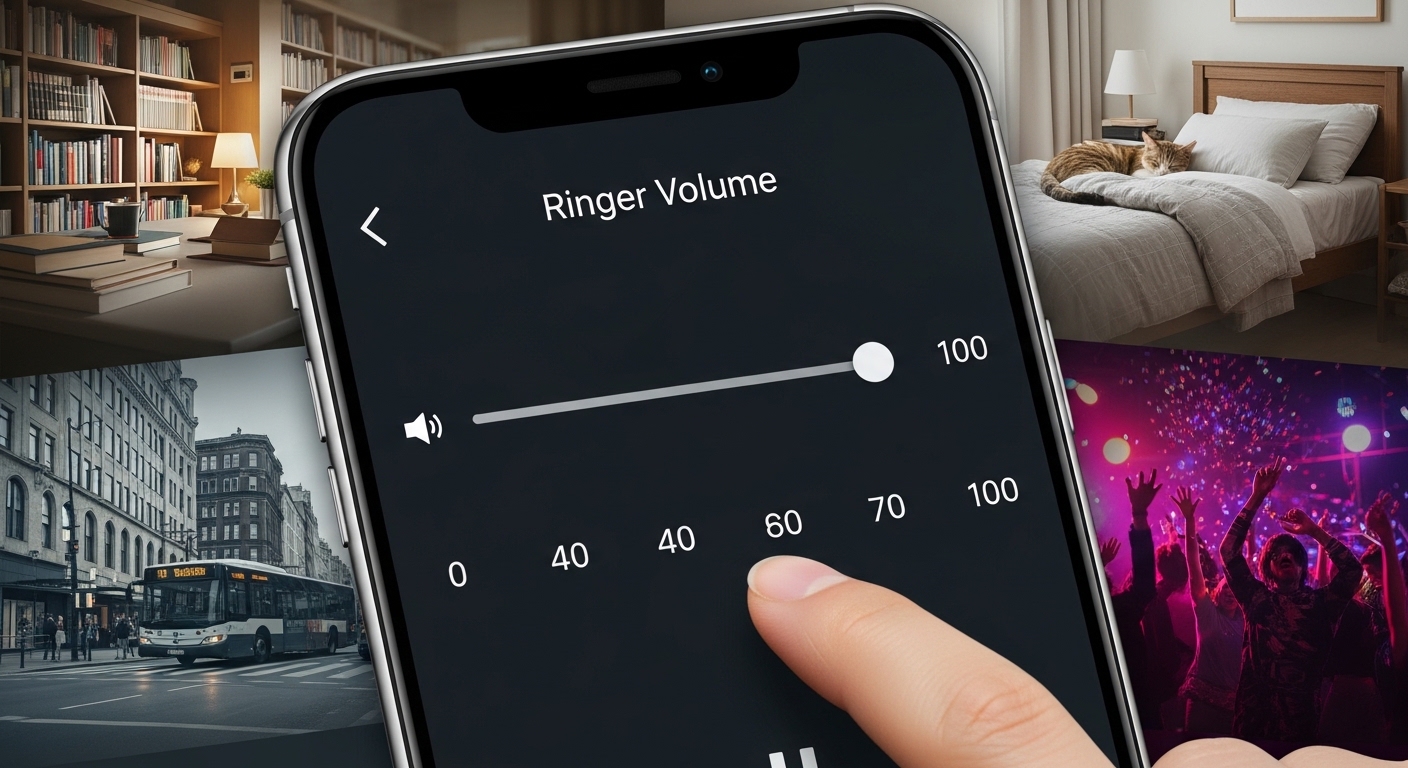
Adjusting your device’s ringer volume is a simple yet effective way to enhance how you communicate. Different scenarios call for different sound levels, and customizing these settings can help you stay connected without interruptions.For those moments when silence is golden—like during meetings or movies—you might want to lower the volume significantly or switch to vibrate mode. Conversely, at social gatherings, increasing the ringer volume ensures that you’re reachable amid all the chatter.Most devices offer intuitive options for tweaking this setting quickly. From adjusting through buttons on the side of your phone to using built-in voice assistants like Siri, there are plenty of ways to find the right balance for any situation!
Device Settings for Ringer Volume
Customizing your device settings is crucial for managing ringer volume effectively. Most smartphones have a dedicated menu where you can adjust audio levels, including specific options for ringers and alerts.Start by locating the sound settings on your device. This often includes sliders or toggles that allow you to set the ringer volume independently from media sounds.Exploring these options lets you tailor notifications to fit different environments, whether you’re at work or enjoying some quiet time at home. Personalization ensures that you’ll never miss an important call while also maintaining control over unwanted noise interruptions.
Try these next steps of Ringer Volume
If you’re still struggling with ringer volume, there are a few extra steps to consider. First, check if your device is in Do Not Disturb mode. This can silence incoming calls and notifications, making it seem like the volume isn’t working.Next, look at any scheduled silent modes or focus settings that might affect how your ringer behaves. Sometimes these features activate without us realizing it.Ensure that no physical switches on the side of your phone are set to mute. It’s easy to overlook this simple fix when you’re caught up in adjusting all other settings for optimal sound.
iPhone User Guide for Ringer Volume
The iPhone User Guide is an invaluable resource for mastering your device. It covers everything from the basics to advanced features, ensuring you get the most out of your phone. You can easily access it through Apple’s website or directly on your iPhone.Navigating the guide is straightforward. The content is well-organized, allowing you to quickly find specific topics like adjusting ringer volume or customizing notifications. Whether you’re a new user or someone looking to refine their skills, this guide has something for everyone.Regularly consulting the user guide can help you stay updated with new features and enhancements introduced in software updates. It’s a handy tool that empowers you to personalize your experience effectively.
Use the volume buttons or Siri to adjust volume
Adjusting your ringer volume can be quick and effortless. Most devices come equipped with physical volume buttons that make it easy to change settings on the fly. A simple press or hold lets you raise or lower the sound instantly, perfect for those moments when you’re in a meeting or need to switch it up.For those who prefer voice commands, Siri is a fantastic option. Just say something like “Hey Siri, set my ringer volume to 50%,” and watch as your device responds immediately. It’s especially useful when your hands are busy.Both methods provide convenience tailored to your lifestyle. Whether you’re out running errands or relaxing at home, adjusting ringer volume has never been easier!
Lock the ringer and alert volumes in Settings
Locking your ringer and alert volumes can prevent unexpected surprises when you’re out in public or in meetings. This feature ensures that your settings remain consistent, no matter what changes occur during use.To lock these volumes on an iPhone, head over to the Settings app and navigate to Sounds & Haptics. Here, you’ll find options to customize both ringer and alert levels effectively. Adjust them according to your preferences before locking them in.This simple adjustment creates peace of mind, knowing that sudden volume shifts won’t disrupt your day. Plus, it allows you to focus fully on conversations without worrying about missed calls or notifications due to a low ringer volume setting.
Adjust the volume in Control Center
Accessing the Control Center on your device is a quick way to manage your ringer volume. Simply swipe down from the top right corner of the screen, or swipe up from the bottom, depending on your model. This gives you immediate access to various settings.Once you’re in the Control Center, look for the volume slider. You’ll see a speaker icon along with an adjustable bar that allows you to increase or decrease ringer volume effortlessly. Just drag it left or right until you find your preferred level.Adjusting here can be especially useful when you’re in different environments and need quick changes. Whether it’s a meeting or enjoying some downtime, having control at your fingertips makes all the difference.
Reduce loud headphone sounds
If you often find yourself cranking up the volume on your headphones, it might be time to take a step back. Listening at high volumes can lead to hearing damage over time. Fortunately, most devices offer settings that help manage headphone sound levels.To mitigate loud sounds, check if your device includes an option to limit maximum headphone volume. This feature can prevent sudden spikes in audio that could startle you or harm your ears.Additionally, consider using noise-canceling headphones. They help block out external noise, allowing you to enjoy music or calls at lower and safer volumes without sacrificing sound quality. Your ears will thank you for being more mindful of their well-being!
Limit the speaker volume of Ringer Volume
Managing your ringer volume also involves controlling the speaker volume. This feature is crucial for maintaining a comfortable sound level without disturbing those around you. To limit the maximum speaker output, head into your device settings.Look for the “Sound” or “Audio” section and find options to set limits on loudness. By adjusting this setting, you can ensure that even in noisy environments, alerts won’t blast unexpectedly. It’s all about creating an atmosphere that suits your surroundings while keeping notifications effective.This level of customization allows users to tailor their experience based on personal needs and preferences. Whether you’re at work or enjoying leisure time, having control over sound levels enhances usability and comfort across various situations.